Viewing and Managing Workouts
Learn how to navigate and explore your workouts in Tempo.
Dashboard Overview
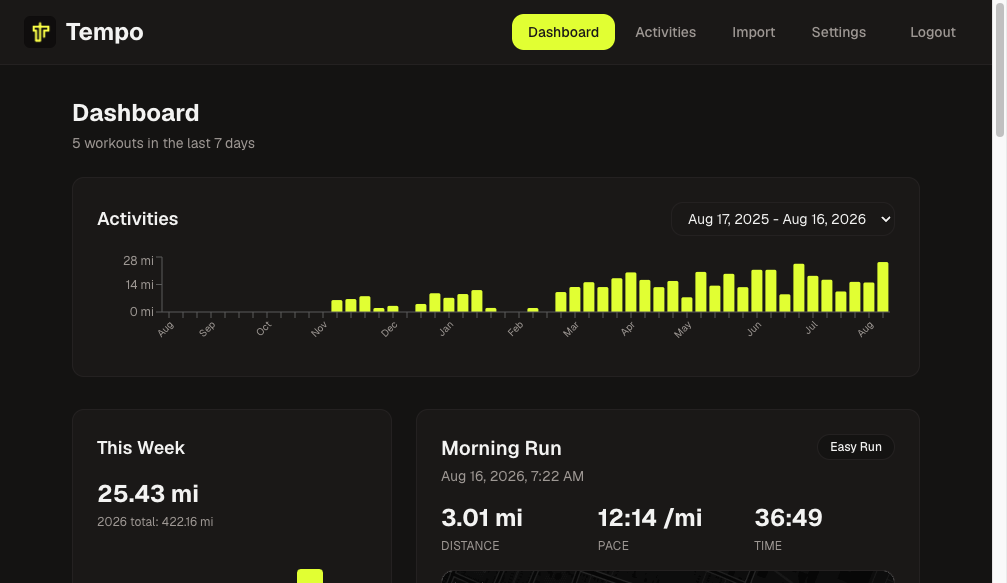
The dashboard provides an overview of your running activity:
- Weekly Statistics - Distance, time, and relative effort for the current week
- Yearly Statistics - Annual totals and trends
- Recent Workouts - Quick access to your latest activities
- Relative Effort Graph - Visual representation of workout intensity over time
- Best Efforts Chart - Your fastest times for standard distances (displayed below the Relative Effort graph)
- Charts and Graphs - Additional visual representations of your progress
Activities List
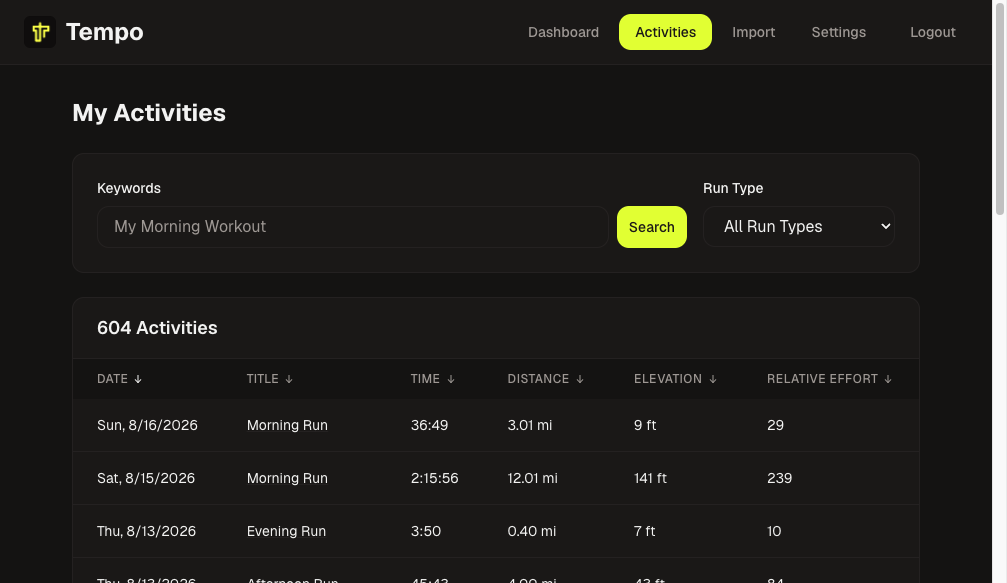
The activities list shows all your imported workouts with:
- Activity Name - Click to view details
- Date and Time - When the workout occurred
- Distance - Total distance covered
- Duration - Total time
- Pace - Average pace
- Elevation - Elevation gain
- Relative Effort - Workout intensity score
Filtering and Sorting
You can filter and sort activities by: - Date range - Distance - Duration - Activity type - Search by name
Workout Overview
Click any workout to open Workout overview — the command-center screen for one Workout (map, splits, time series, weather, media, comparison). Use the Overview and Route comparison tabs when similar routes exist.
Highlight
Map, splits, and time-series charts share one Highlight: a split index and/or elapsed seconds (or none). Hover or click a split, a chart point, or the route and the other two follow. Leaving the hover restores the unhighlighted overview.
Map View
- Interactive Route Map - Visualize your route with Leaflet maps
- Themed tiles - Dark Matter in Dark appearance, Voyager in Light (CARTO; attribution includes OpenStreetMap)
- CARTO API key - CARTO now requires a free API key for basemap tiles. Without one, maps show an "API key required" watermark. Request a key at carto.com/basemaps/apikey, set
CARTO_BASEMAPS_API_KEYin your deployment.env(see Configuration), restart the API, and hard-refresh the browser. - Zoom and Pan - Explore different parts of your route
- Route stroke and Highlight colors follow the command-center identity (volt on dark; a dark stroke on light)
Statistics
Detailed metrics including: - Distance - Total distance in your preferred units - Time - On Workout overview, when FIT timer time differs from elapsed, the primary Duration is timer time with elapsed shown underneath; Moving Time appears under Additional Details only when it differs from that hero clock. Without timer, Moving Time still promotes over elapsed when they differ (same as before). Workout cards and the activities table show a single duration number (timer when it differs from elapsed; they do not promote moving). Analytics Duration sums remain elapsed. - Pace - Average, best, and current pace - Elevation - Gain, loss, min, and max elevation - Heart Rate - Average and max; when an HR series exists, Additional Details also shows time in zones 1–5 (with % of time that landed in a zone). Omit the zone block when there is no HR series - Cadence - Average and max cadence in steps per minute (spm), if available from FIT or GPX TrackPointExtension - Power - Average and max power (if available from FIT or GPX TrackPointExtension) - Relative Effort - Calculated intensity score - Shoe - Assigned running shoe (if any), showing brand, model, and current total mileage
You can also edit notes, RPE, run type, and shoe assignment on this screen.
Splits
The Splits table on Workout overview shows:
- Split number
- Distance
- Time
- Pace
- Average heart rate (when available)
When the Workout has device laps (from a FIT file with 2+ kept lap messages), overview shows those laps — including a leftover fraction of a mile or kilometre — and lap times are timer time (pauses excluded). The heading stays Splits. Unit-preference still rebuilds distance-based km/mile rows only; device laps are preserved until crop or a fuller re-import.
Without device laps, splits are calculated from your unit preference (1 km metric, 1 mile imperial). Hover or click a split to set Highlight on the map and charts.
Time Series Charts
When sensor samples exist, Workout overview charts heart rate, pace (from speed), elevation, cadence, and power over elapsed time. A series with no samples is omitted. A Workout with no time series shows No sensor data instead of empty chart frames.
Cadence tooltips use spm (steps per minute). Power tooltips use W. Stored cadence or power of 0 (for example at a stop) is not plotted so the axis stays in the running band.
Temperature, speed, grade, and vertical speed remain in stored WorkoutTimeSeries when the file provided them; they are not charted on this screen.
For very long Workouts, the command center loads up to 20,000 samples (paged from GET /workouts/{id}/time-series) and still renders what it loaded.
Weather Information
Automatic weather data for the workout: - Temperature - Conditions - Wind speed - Humidity
Similar Routes
Tempo can automatically find workouts that follow similar routes: - Route Matching - Automatically finds workouts with similar paths based on route geometry - Similarity Score - Shows how closely routes match (0-100%) - Comparison View - Compare distance, time, and pace differences between similar routes - Route Comparison Tab - Visual side-by-side comparison of route overlays - Time Comparison - See how your performance has changed on the same route over time
How It Works: - Routes are matched based on start/end proximity, distance similarity, and route geometry - Only workouts from the last 2 years are considered (configurable) - Similar routes are automatically displayed on Workout overview - Click on any similar route to open that Workout's overview
Managing Workouts
Edit Workout
You can edit: - Activity Name - Change the name of the workout - Shoe Assignment - Assign, change, or remove the shoe associated with this workout - Use the edit control on Workout overview
Assigning a Shoe to a Workout
To assign or change the shoe for a workout:
- Open Workout overview
- Use the shoe field (or edit controls) on that screen
- Select a shoe from the dropdown list, or select "No Shoe" to remove the assignment
- Save your changes if prompted
Note: Changing a workout's shoe assignment will automatically update the total mileage for both the old and new shoes (if applicable). The workout's distance is added to the new shoe's total and removed from the old shoe's total.
Crop Workout
Remove time from the start or end of a workout: 1. Open Workout overview 2. Use the crop feature 3. Specify time to remove from start and/or end 4. Save changes
Crop rebuilds route, splits, time series, and elevation from the remaining TrackPoints through track geometry. Device session distance from the original FIT/GPX file is not reused on the trimmed Workout.
Delete Workout
To delete a workout: 1. Open Workout overview 2. Click the delete button 3. Confirm deletion
Warning: Deleting a workout permanently removes all associated data including route, splits, time-series data, and media.
Recalculate Metrics
You can recalculate:
- Relative Effort - Recalculate based on current heart rate zone settings
- Splits - Recalculate splits if you've changed unit preferences (replaces distance WorkoutSplit rows only; device laps are preserved when present; stored workout distance, duration, and elevation stay)
Statistics and Analytics
Weekly Statistics
View statistics for the current week: - Total distance - Total time - Number of workouts - Average pace - Total relative effort
Yearly Statistics
Annual overview including: - Total distance for the year - Total time - Number of workouts - Trends and comparisons
Relative Effort
Track workout intensity over time: - Weekly relative effort totals - Trends and patterns - Intensity distribution
Tips for Navigation
- Use the search function to quickly find specific workouts
- Filter by date range to focus on specific periods
- Sort by different metrics to identify your best performances
- Use the map view to explore routes visually
- On Workout overview, hover splits and charts together (Highlight) to analyze a segment
Next Steps
- Add media to your workouts
- Understand analytics in more detail
- Configure settings to customize your experience