Settings and Preferences
Configure Tempo to match your preferences and needs.
Overview
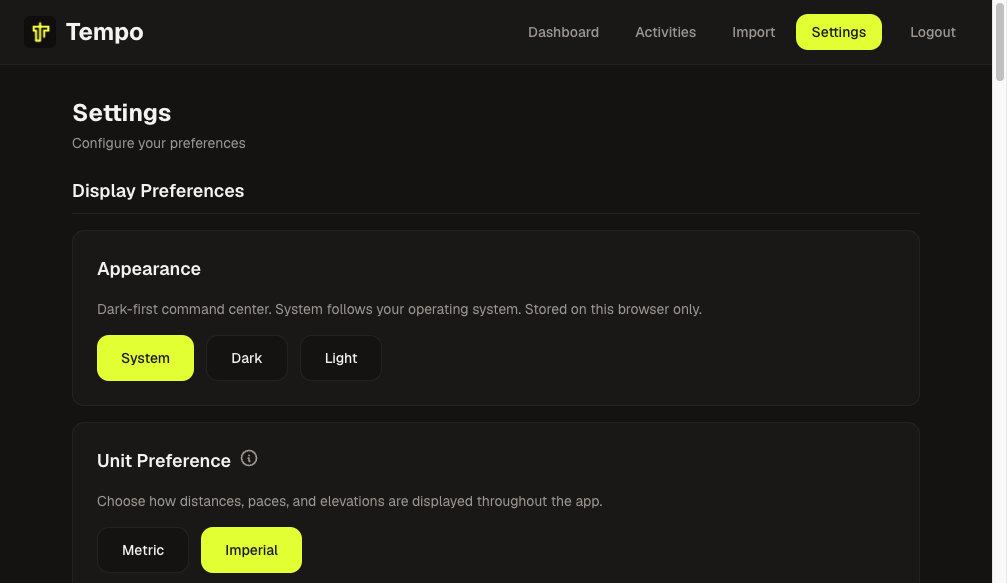
Tempo settings allow you to customize: - Appearance (System, Dark, or Light) on this browser - Unit preferences (metric/imperial) - Heart rate zones - Relative effort calculation - Shoe tracking and management - Export (prominent under Data Management) and collapsed Migrate / restore (Strava archive + Tempo export restore) - Optional intervals.icu connection under Integrations (Garmin and other devices via intervals.icu)
On a fresh install, units, heart rate zones, and an optional default shoe are usually set during first-run onboarding. You can change them anytime here.
Appearance
The command center is dark-first (black canvas, volt yellow accent). Light theme still exists. Appearance is a browser preference, not UserSettings: it is not stored on the server and does not sync to the iOS app.
Options
- System (default) — Follows the operating system light/dark preference
- Dark — Forces the dark theme
- Light — Forces the light theme
The choice is stored in this browser as tempo-appearance and survives reload. Volt yellow is used for primary actions, active navigation, and highlights — never as body text.
Changing Appearance
- Navigate to Settings
- In Display Preferences, choose System, Dark, or Light
No Save button is required; the selection applies immediately.
Unit Preferences
Choose between metric and imperial units for all measurements.
Metric Units
- Distance: Kilometers (km)
- Elevation: Meters (m)
- Pace: Minutes per kilometer (min/km)
- Splits: 1 kilometer intervals
Imperial Units
- Distance: Miles (mi)
- Elevation: Feet (ft)
- Pace: Minutes per mile (min/mi)
- Splits: 1 mile intervals
Changing Unit Preference
- Navigate to Settings
- Select your preferred unit system
- Save changes
Note: Changing unit preferences will trigger recalculation of splits for all workouts. This may take a few moments.
Heart Rate Zones
Heart rate zones determine how your workouts are analyzed and how relative effort is calculated.
Zone Calculation Methods
Tempo supports three methods for calculating heart rate zones:
Age-Based Method
Uses your age to estimate maximum heart rate:
- Formula: 220 - age
- Zones calculated as percentages of max HR
- Simple and requires only your age
Karvonen Method
Uses your age and resting heart rate:
- Formula: ((220 - age) - resting HR) × zone% + resting HR
- More accurate than age-based
- Requires knowing your resting heart rate
Custom Method
Manually set zone boundaries: - Define exact heart rate ranges for each zone - Most flexible option - Requires understanding of your personal zones
Zone Definitions
Standard five-zone system:
- Zone 1 (Recovery): 50-60% of max HR - Very light effort
- Zone 2 (Aerobic): 60-70% of max HR - Easy, conversational pace
- Zone 3 (Tempo): 70-80% of max HR - Moderate, sustainable effort
- Zone 4 (Threshold): 80-90% of max HR - Hard, challenging effort
- Zone 5 (Maximum): 90-100% of max HR - Maximum effort, unsustainable
Configuring Heart Rate Zones
- Navigate to Settings
- Select your zone calculation method
- Enter required information (age, resting HR, or custom zones)
- Choose whether to recalculate relative effort for existing workouts
- Save changes
Recalculating Relative Effort
When you change heart rate zones, you can: - Recalculate All Workouts - Updates relative effort for all existing workouts (may take time) - Apply to New Workouts Only - New workouts use new zones, existing workouts keep old scores
Relative Effort
Relative effort is automatically calculated based on: - Heart rate data from your workouts - Your configured heart rate zones - Time spent in each zone
Understanding Relative Effort
- Low (0-50): Easy/recovery runs
- Moderate (50-100): Tempo or steady-state runs
- High (100-150): Hard intervals or tempo runs
- Very High (150+): Maximum effort, races, or intense intervals
Recalculating Relative Effort
You can manually recalculate relative effort: 1. Go to Settings 2. Find the "Recalculate Relative Effort" section 3. See how many workouts are eligible for recalculation 4. Click "Recalculate All" to update all workouts
Note: This operation may take several minutes for large workout collections.
Shoe Management
Track the mileage on your running shoes to know when it's time to replace them. Tempo automatically calculates total mileage for each shoe based on assigned workouts.
Adding a Shoe
To add a new shoe to your collection:
- Navigate to Settings
- Find the "Shoe Management" section
- Click "Add Shoe"
- Enter the shoe details:
- Brand - Shoe manufacturer (e.g., "Nike", "Adidas")
- Model - Shoe model name (e.g., "Pegasus 40", "Ultraboost 22")
- Initial Mileage (optional) - If the shoe already has miles on it when you add it
- Click "Save"
Note: Initial mileage is optional. If you're adding a brand new shoe, you can leave this blank. If you're adding a shoe that already has some miles, enter the current mileage so Tempo can track it accurately.
Viewing Your Shoes
The Shoe Management section displays all your shoes with: - Brand and model name - Current total mileage (calculated automatically) - Number of workouts assigned to each shoe
Mileage is displayed in your preferred units (kilometers for metric, miles for imperial).
Mileage Calculation
Total mileage for each shoe is calculated as: - Sum of all workout distances assigned to that shoe - Plus any initial mileage you entered when adding the shoe
Mileage updates automatically whenever you: - Assign a shoe to a workout - Change a workout's shoe assignment - Remove a shoe assignment from a workout
Editing a Shoe
You can update shoe details at any time:
- Find the shoe in the Shoe Management section
- Click "Edit"
- Update the brand, model, or initial mileage
- Click "Save"
Note: Changing initial mileage will recalculate the total mileage for that shoe.
Setting a Default Shoe
You can set one shoe as your default shoe:
- Find the shoe in the Shoe Management section
- Click "Set as Default"
When a default shoe is set: - New workouts imported into Tempo will automatically be assigned to your default shoe - You can still change the shoe assignment on any workout after import - You can change or remove the default shoe at any time
Deleting a Shoe
To remove a shoe from your collection:
- Find the shoe in the Shoe Management section
- Click "Delete"
- Confirm the deletion
Note: When you delete a shoe, all workouts that were assigned to that shoe will have their shoe assignment removed (set to "No Shoe"). The workouts themselves are not deleted.
Best Practices
- Add shoes when you get them - Add new shoes to your collection as soon as you start using them
- Set a default shoe - If you primarily use one pair of shoes, set it as default for automatic assignment
- Update initial mileage - If you're adding a shoe that already has miles, enter the current mileage for accurate tracking
- Regular review - Check shoe mileage regularly to know when it's time to replace them (most running shoes last 300-500 miles)
Integrations
intervals.icu
Optional. Tempo can store your personal intervals.icu API key and import new running activities automatically. This is not part of onboarding. Privacy-minded setups can skip it and keep uploading FIT/GPX files.
Setup
- Create a free intervals.icu account if you need one
- Connect Garmin (or another device) under intervals.icu settings
- Copy your personal API key from intervals.icu Settings → Developer
- In Tempo Settings → Integrations, paste the key and click Connect
Tempo probes intervals.icu before saving. The key is stored encrypted and is never shown again. Disconnect wipes the key; your Workouts stay. If intervals.icu rejects the key later, Tempo disables live sync and keeps the stored key — use Re-enable after you fix it, or Replace key to paste a new one without losing sync history.
After you connect, Tempo looks for new running activities about every 15 minutes. Sync now on the Integrations card asks Tempo to check immediately; it does not wait on this page. New runs appear in the library as first-class Workouts. Already-imported runs, non-running activities, and files that are not FIT or GPX are skipped. Deleting a run from Tempo also drops its intervals.icu identity, so the next successful sync can import it again. History older than a couple of days is still a manual FIT/GPX or Strava ZIP import. Changing the server JWT__SecretKey means you must replace the intervals.icu key in Settings.
Privacy: activity files transit intervals.icu (a donation-supported third party). Tempo does not talk to Garmin unofficially.
The connection is not included in a Tempo export ZIP. After restore, connect again in Settings.
Export / Import
Tempo allows you to export all your data in a portable ZIP format for backup, migration, or data portability. Under Migrate / restore, you can restore a previous Tempo export or import a Strava archive after onboarding.
Exporting Your Data
To export all your Tempo data:
- Navigate to Settings
- Find the Export section under Data Management
- Click "Export All Data"
- Wait for the export to complete (may take a moment for large datasets)
- Your browser will download a ZIP file named
tempo-export-{timestamp}.zip
Note: The export process may take several minutes if you have many workouts or large media files. The page will show "Exporting..." while the process is running.
What's Included in the Export
The export includes everything in your Tempo instance:
- All Workouts - Complete workout data including:
- All core stats (distance, pace, elevation, heart rate, etc.)
- Metadata (name, run type, notes, source, device)
- Raw workout files (GPX, FIT, CSV) as binary files
- All JSONB fields (RawGpxData, RawFitData, RawStravaData, Weather)
- Relative effort calculations
- Shoe assignments
-
Created timestamps
-
Workout Routes - GeoJSON LineString data for all workouts with routes
-
Workout Splits - All distance-based splits for each workout
-
Workout Time Series - All time-series data points (heart rate, pace, elevation over time)
-
Media Files - All photos and videos attached to workouts
-
Shoes - All shoe records with brand, model, initial mileage, and timestamps
-
User Settings - Complete settings including:
- Heart rate calculation method and zones
- Unit preferences (metric/imperial)
-
Default shoe reference
-
Best Efforts - All best effort records for standard distances
The intervals.icu API key is not included. Reconnect under Settings → Integrations after restore.
- Manifest File - Metadata about the export including:
- Export format version
- Tempo version
- Export date and user
- Statistics (counts of all data types)
- Data format paths
Export Format
The export is a ZIP file with the following structure:
tempo-export-{timestamp}.zip
├── manifest.json          # Export metadata and version info
├── data/                  # JSON files with all database records
│   ├── settings.json
│   ├── shoes.json
│   ├── workouts.json
│   ├── routes.json
│   ├── splits.json
│   ├── time-series.json
│   ├── media-metadata.json
│   └── best-efforts.json
├── workouts/              # Binary files organized by workout
│   ├── {workoutId}/
│   │   ├── raw/          # Original workout files (GPX/FIT/CSV)
│   │   └── media/        # Photos and videos
│   │       └── {mediaId}/
│   │           └── {filename}
└── README.txt            # Export format documentation
Use Cases
Export your data for:
- Backup - Create regular backups of your running data
- Migration - Move your data to a new Tempo instance
- Data Portability - Keep a portable copy of all your data
- Recovery - Restore data after accidental deletion or system failure
Importing Data
Migrate / restore (collapsed under Data Management) lets you restore data from a previously exported Tempo ZIP file, or import a Strava archive after onboarding. This enables you to:
- Restore all workouts, media, shoes, and settings
- Import into a new or existing Tempo instance
- Migrate data between Tempo instances
- Recover from data loss or accidental deletion
- Import a late Strava archive (see Bulk Import)
- Handle duplicate detection automatically
Settings restore runs as a background import job (same rails as Strava bulk import): the ZIP uploads in chunks, then Tempo restores item by item with live progress.
How to Import
- Navigate to Settings
- Under Data Management, expand Migrate / restore
- For a Tempo backup: use Restore Tempo export and upload your Tempo export ZIP
- For Strava: use Import Strava archive (see Bulk Import)
- Watch upload progress (%), then restore/import progress (
processed/total) - When finished, review the summary showing what was imported, skipped, or had errors
Progress and cancel: Large exports can take several minutes. You can cancel while uploading or restoring; items already restored stay. Re-upload the same ZIP later — duplicates are skipped (and incomplete workouts can be updated) as usual.
One import at a time: Tempo allows only one active import job across Tempo restore and Strava bulk import (both under Migrate / restore, or during onboarding). If the other kind is running, the UI shows a message and will not start until that job finishes or is cancelled. Refreshing Settings resumes an in-progress job.
What Gets Imported
The import restores all data from the export file:
- User Settings - Heart rate zones, unit preferences, default shoe
- Shoes - All shoe records with brand, model, and initial mileage
- Workouts - Complete workout data including:
- All core stats (distance, pace, elevation, heart rate, etc.)
- Metadata (name, run type, notes, source, device)
- Raw workout files (GPX, FIT, CSV) stored in database
- All JSONB fields (RawGpxData, RawFitData, RawStravaData, Weather)
- Relative effort calculations
- Shoe assignments
- Created timestamps (preserved from export)
- Workout Routes - GeoJSON LineString data for all workouts
- Workout Splits - All distance-based splits
- Workout Time Series - All time-series data points
- Media Files - All photos and videos attached to workouts
- Best Efforts - All best effort records for standard distances
Duplicate Detection
Tempo automatically detects and skips duplicates during import:
- Workouts: Detected by start time, distance, and duration (within small tolerance)
- Shoes: Detected by brand and model (exact match)
- Best Efforts: Detected by distance (one best effort per distance)
- Settings: Only one settings record exists (replaces existing)
Duplicates are automatically skipped and reported in the import summary. You can view detailed warnings and errors in the import results.
Import Statistics
After import completes, you'll see a detailed summary including:
- Imported - Count of successfully imported items for each data type
- Skipped - Count of duplicates or items that couldn't be imported
- Errors - Count of items that failed to import
- Warnings - Expandable list of warnings (duplicates, missing references, etc.)
- Errors - Expandable list of errors with details
Import Requirements
- File Format: Must be a Tempo export ZIP file (created using the Export feature)
- File Size: Up to 500MB supported
- Version: Currently supports export format version 1.0.0
- Authentication: Must be logged in to import
Import Behavior
- GUIDs Preserved: All IDs from the export are preserved (allows true restoration)
- Timestamps Preserved: Created and updated timestamps from export are maintained
- Relationships Maintained: Shoe assignments, media attachments, and other relationships are restored
- Settings Refresh: Unit preferences and other settings are automatically refreshed in the UI after import
Troubleshooting
Import Fails Immediately - Verify the file is a valid Tempo export ZIP file - Check that the file size is under 500MB - Ensure you're logged in - Check API logs for specific error messages
Cannot Start Import / Message About Strava - Finish or cancel the Strava bulk import under Settings → Migrate / restore first - Only one import job can run at a time (Tempo restore or Strava bulk)
Progress Seems Stuck
- Large restores can take 10+ minutes; watch processed / total update
- Refresh the Settings page — an active Tempo restore resumes from the server
- Check whether you cancelled; partial restore is expected after cancel
- Verify server resources and API logs
Partial Restore After Cancel - Already imported shoes, workouts, media, and settings remain - Re-import the same ZIP; duplicates skip and incomplete items can update - Review the previous summary warnings/errors if present
Some Items Not Imported - Check the import summary for skipped items - Review warnings for duplicate detection - Verify the export file is complete and not corrupted - Check that referenced entities exist (e.g., shoes referenced by workouts)
Settings Not Refreshing - Refresh the page if unit preferences don't update immediately - Check that settings were successfully imported (check import statistics) - Verify the export included settings data
Media Files Missing - Check that media files exist in the export ZIP file - Verify file paths in the export match the expected structure - Review import warnings for missing media file references
Use Cases
Import your data for:
- Backup Restoration - Restore from a previously created backup
- Migration - Move your data to a new Tempo instance
- Data Recovery - Recover from accidental deletion or system failure
- Testing - Import test data into a development instance
Settings Management
Viewing Settings
All settings are accessible from the Settings page: - Appearance (this browser only) - Unit preferences - Heart rate zone configuration - Relative effort management - Shoe tracking and management - Data export and import
Saving Changes
- Changes are saved immediately when you click "Save"
- Some changes (like unit preferences) may trigger background recalculation
- You'll see confirmation when changes are applied
Best Practices
Heart Rate Zones
- Use the Karvonen method if you know your resting heart rate
- Custom zones are best if you've had a professional assessment
- Age-based is fine for general use
- Recalculate relative effort when changing zones to maintain consistency
Unit Preferences
- Choose based on your familiarity and local conventions
- All historical data will be displayed in your chosen units
- Splits automatically adjust to match your preference
Troubleshooting
Settings Not Saving
If settings don't save: - Check that you're logged in - Verify all required fields are filled - Check for error messages - Refresh the page and try again
Recalculation Not Working
If recalculation doesn't complete: - Check that you have workouts with heart rate data - Verify heart rate zones are configured correctly - Wait for the process to complete (may take time) - Check API logs for errors
Next Steps
- Import workouts to see your settings in action
- View analytics to understand how settings affect metrics
- Explore the dashboard to see your configured preferences